Introduction to GraphQL and querying the API
Table of contents
GraphQL is a query language for Application Programming Interfaces (APIs). It documents what data is available in the API and lets you query and get exactly the data you want — and nothing more.
This tutorial provides a short introduction to GraphQL, but we recommend exploring the GraphQL documentation and other introductory resources like this one to learn more.
In the GraphQL API, queries are written in the GraphQL language, and the result (the data) is given back in JSON format. JSON (JavaScript Object Notation) is a standard text-based format for representing structured data, widely used for transmitting data in web applications, and easily reformatted into tables or data frames in programming languages like R or Python.
Zendro provides a GraphQL API web interface called GraphiQL, a web browser tool for writing, validating, and testing GraphQL queries.
Zendro’s GraphQL API allows not only querying data, but also creating, modifying or deleting records (mutate). This is only available with authentication (i.e. logging in with edit permissions) and isn’t covered in this tutorial — see Zendro’s other how-to guides for details on mutations.
The screenshots below come from a small demo dataset with three countries, nine cities and four rivers — you’ll see the same city/country/river data models if you follow the Quickstart guide.
GraphiQL web interface
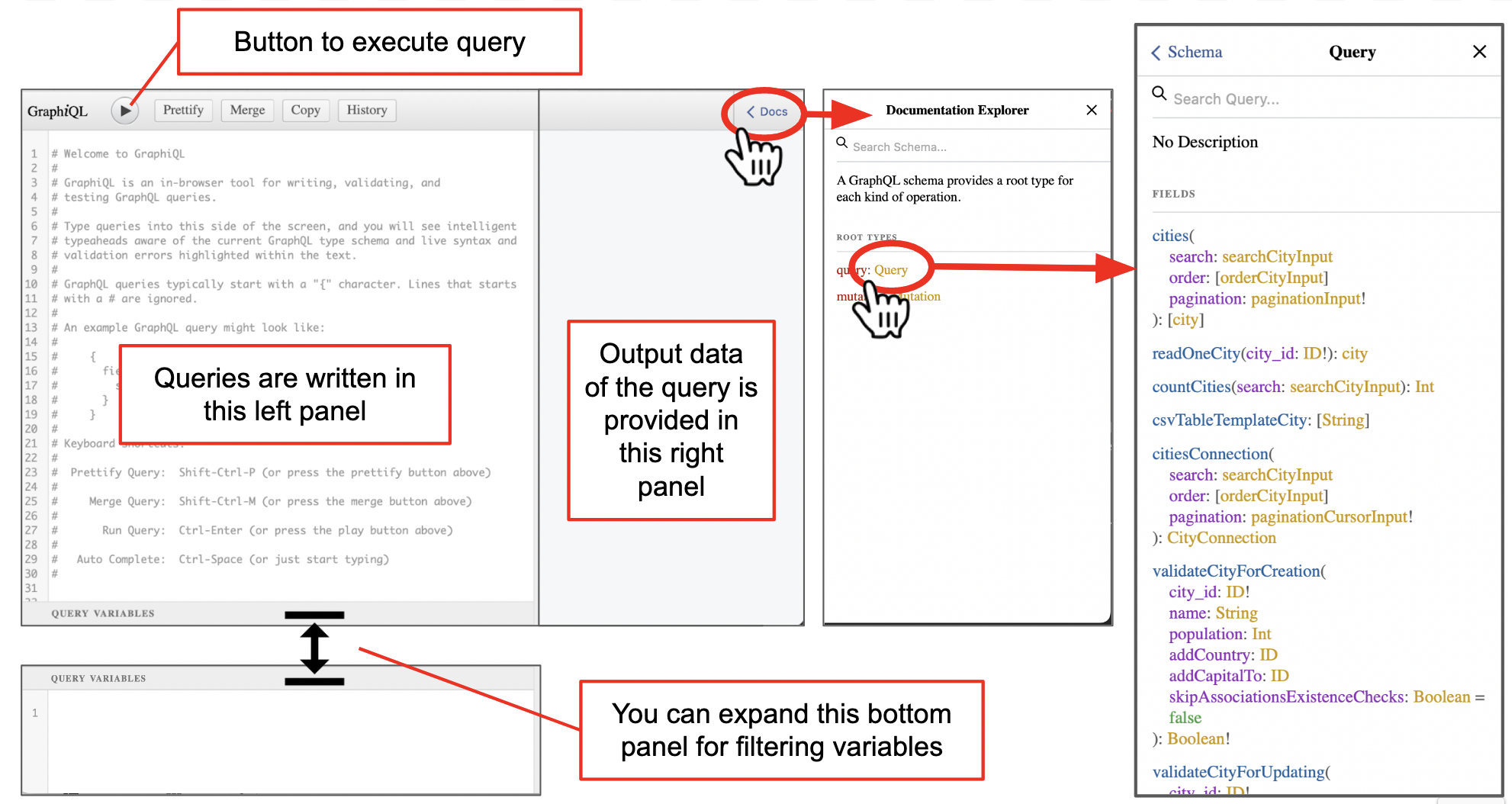
The GraphiQL API web interface has the following main components:
- A left panel where you write your query in GraphQL format.
- A right panel where the query result is shown in JSON format.
- A play button to execute the query. Its keyboard shortcut is
Ctrl+Enter. - A Documentation Explorer side menu, shown or hidden by clicking the book icon in the top left corner.
Data in GraphQL is organised in types and fields within those types. When thinking about your structured data, you can think of types as the names of tables, and fields as the columns of those tables — records are the rows of data from those tables. Learn more in the GraphQL documentation.
A GraphQL service is created by defining types and fields on those types, and providing functions for each field on each type.
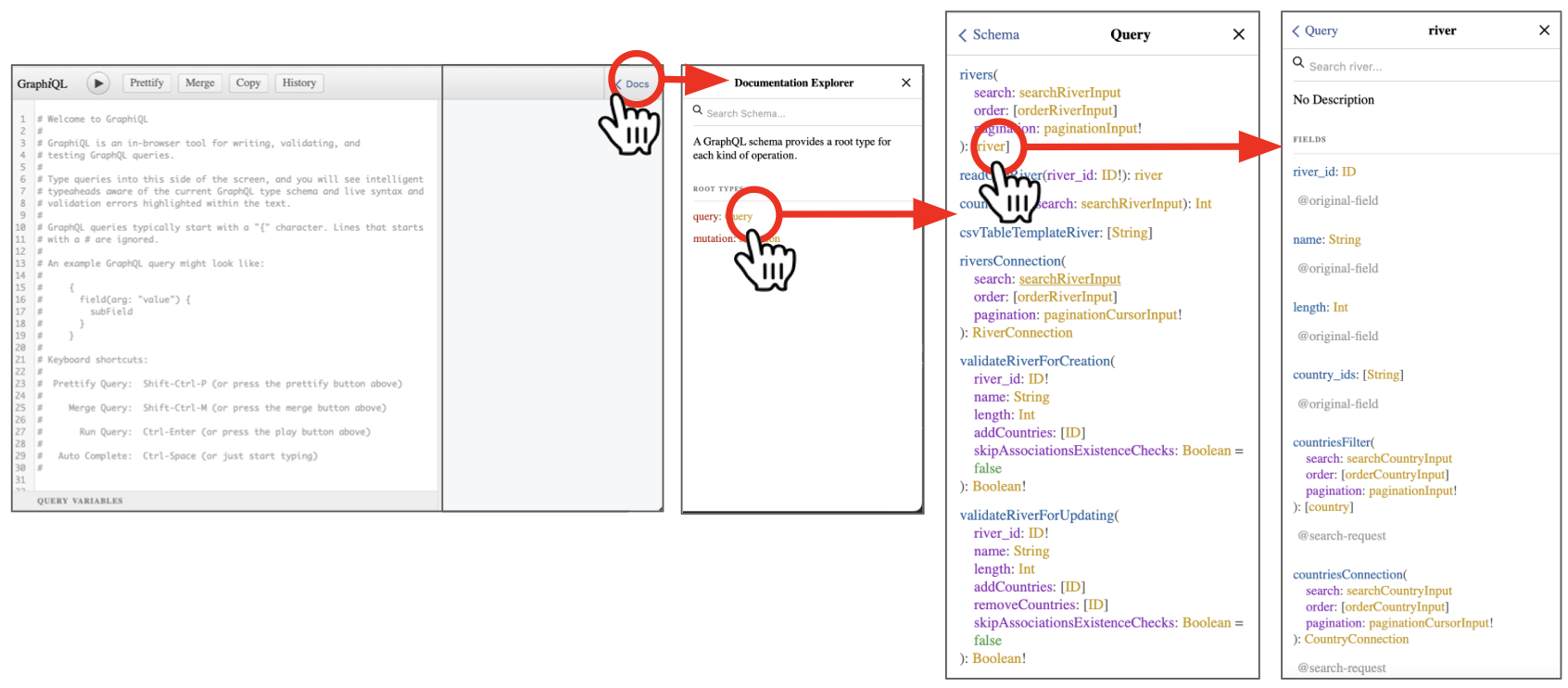
Opening the Documentation Explorer shows the two root types — Query and Mutation — plus a full alphabetical list of every type in the schema. Clicking Query opens a view listing every top-level query operation, in order:
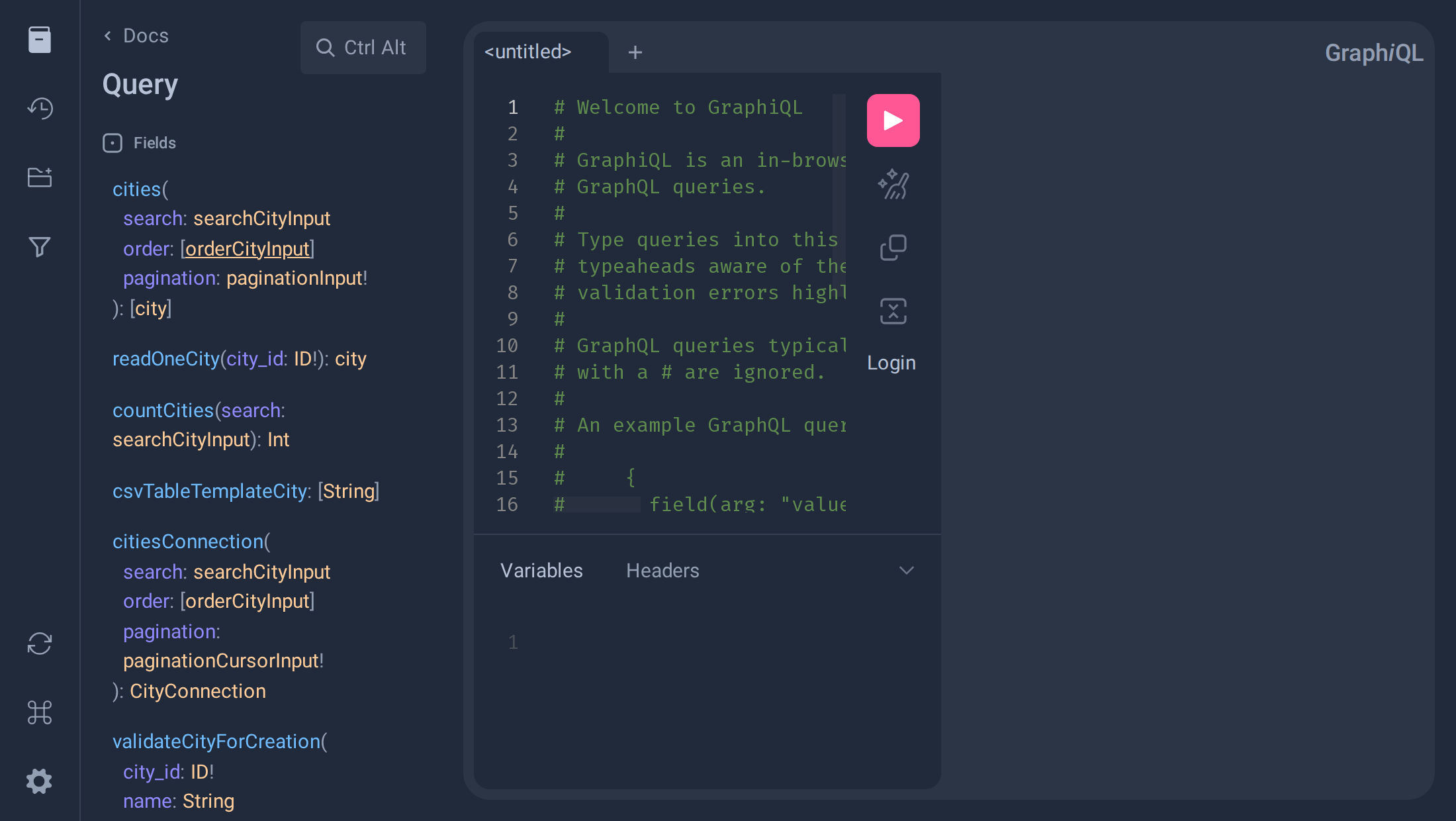
In the image above, the first operation is cities. Operations can take arguments, specified inside parentheses (). Some arguments are required (marked with !), such as pagination.
You can extend the bottom panel (“Variables”) to provide dynamic inputs to your query. Learn more.
Writing queries
The GraphQL documentation has plenty of resources on how to build queries and make the most of GraphQL; below is a short summary, after which we recommend exploring it further.
GraphQL syntax tips:
- Queries and other operations are written between curly braces
{}. - Types can contain elements or arguments, specified inside parentheses
(). - Use a colon
:to set parameter arguments (e.g.pagination: {limit: 10, offset: 0}). - Use a hashtag
#to include comments within a query, useful for documenting what you’re doing. - A query should provide at least one type (e.g.
rivers), at least one field (e.g.name), and any mandatory arguments the type has (marked with!in the Docs). - In Zendro,
paginationis a mandatory argument on every list query. It refers to the number of records (limit) the output returns, starting from a givenoffset. If you don’t specify the offset, it defaults tooffset: 0.
A simple query looks like this:
{
  rivers(pagination: {limit: 10, offset: 0}) {
    # fields you want from the "rivers" type go here
    name
  }
}
Copy-pasting and executing the query above in GraphiQL looks like this — we got the names of all four rivers in the demo dataset:
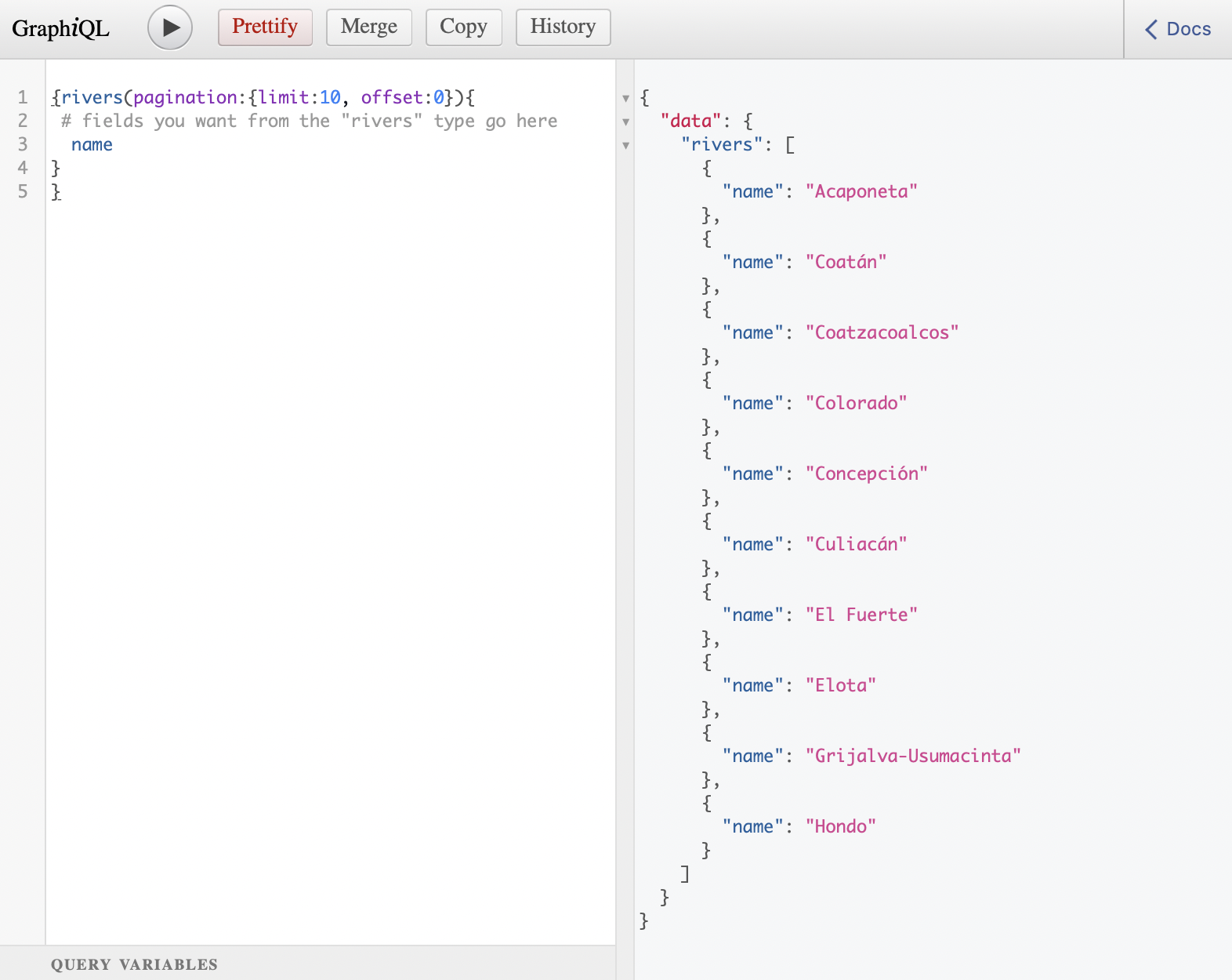
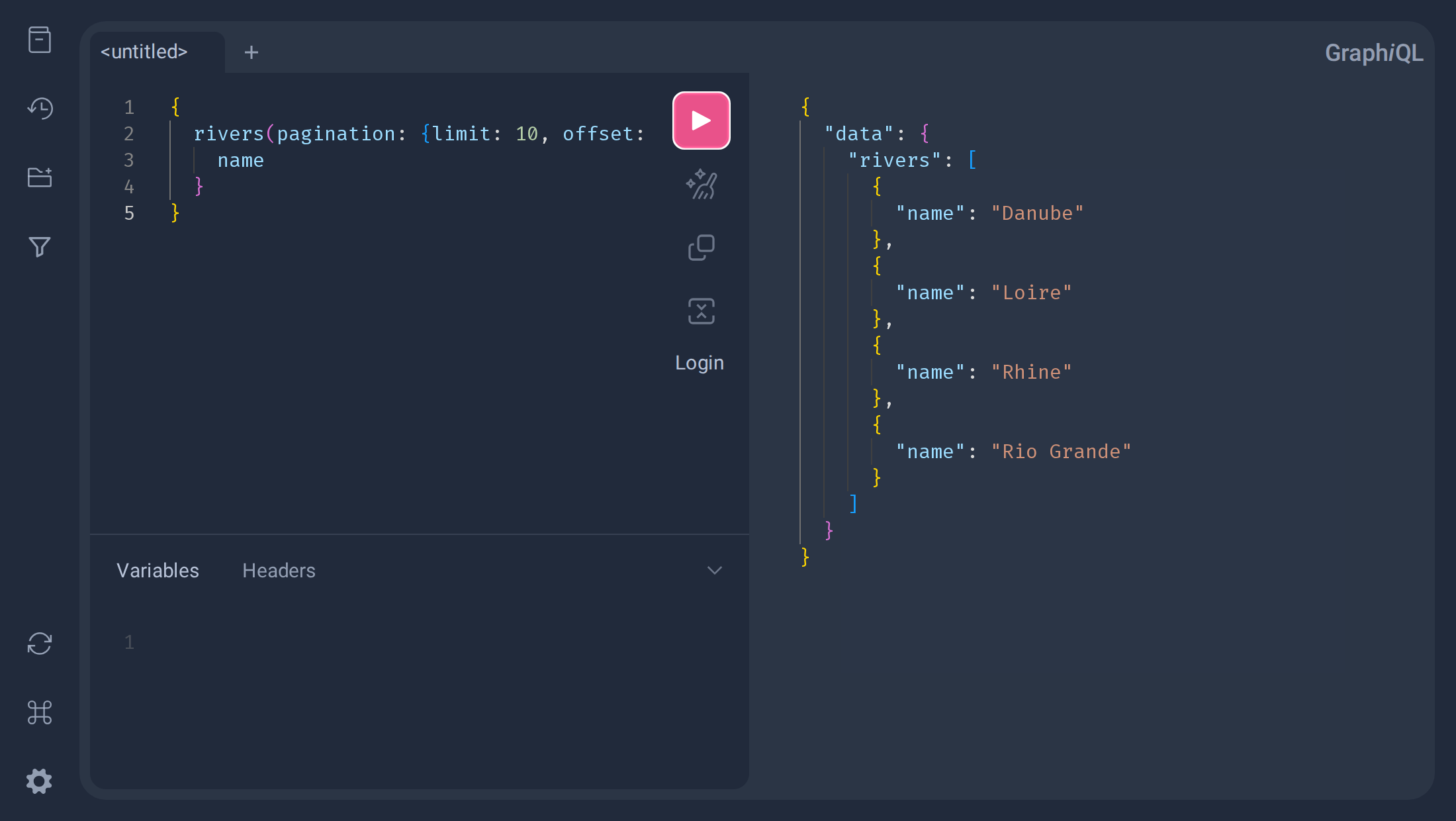
But how did we know name is a field within rivers? There are two options:
Option 1: check the Docs panel
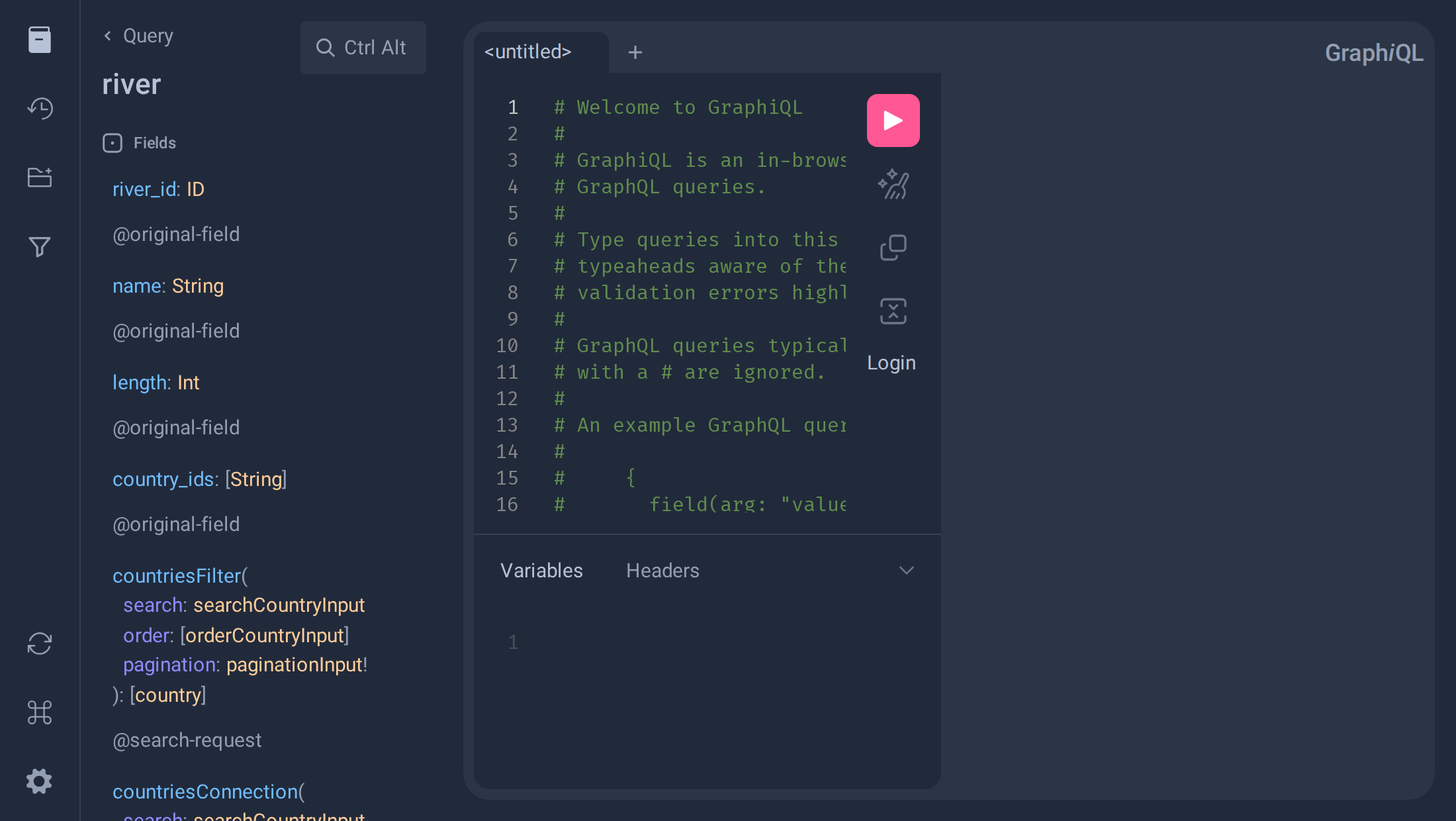
Click Query, look for the operation you want (in this example rivers), then click [river]. This opens the list of available fields on the river type, along with their documentation:
Option 2: autocomplete while you type
To see what fields are available for the rivers type, hold Ctrl+Space inside the curly braces {} after rivers(pagination: {limit: 10, offset: 0}). A menu appears showing all possible fields.
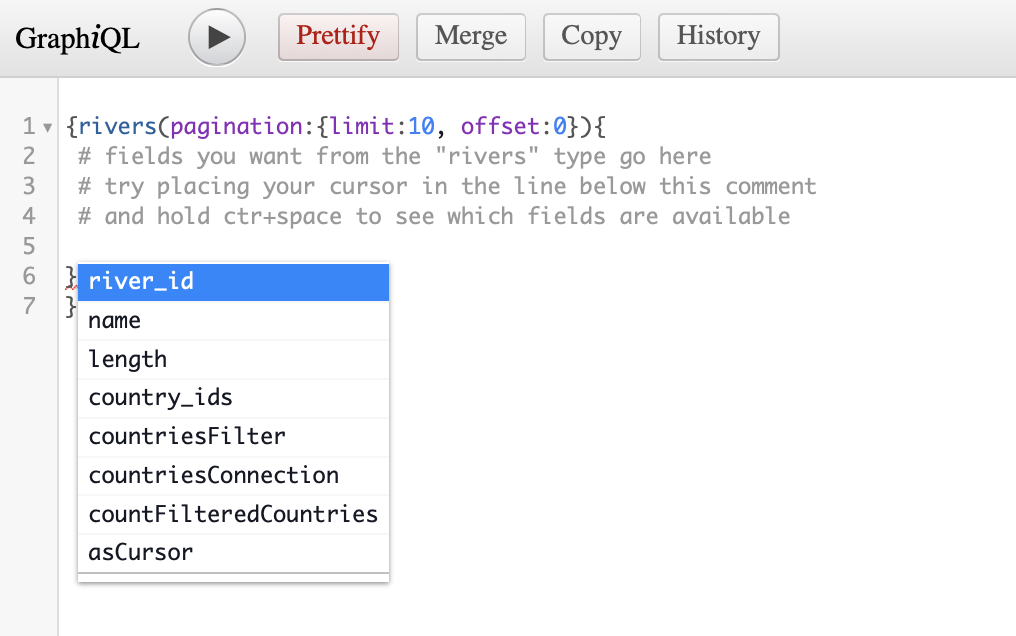
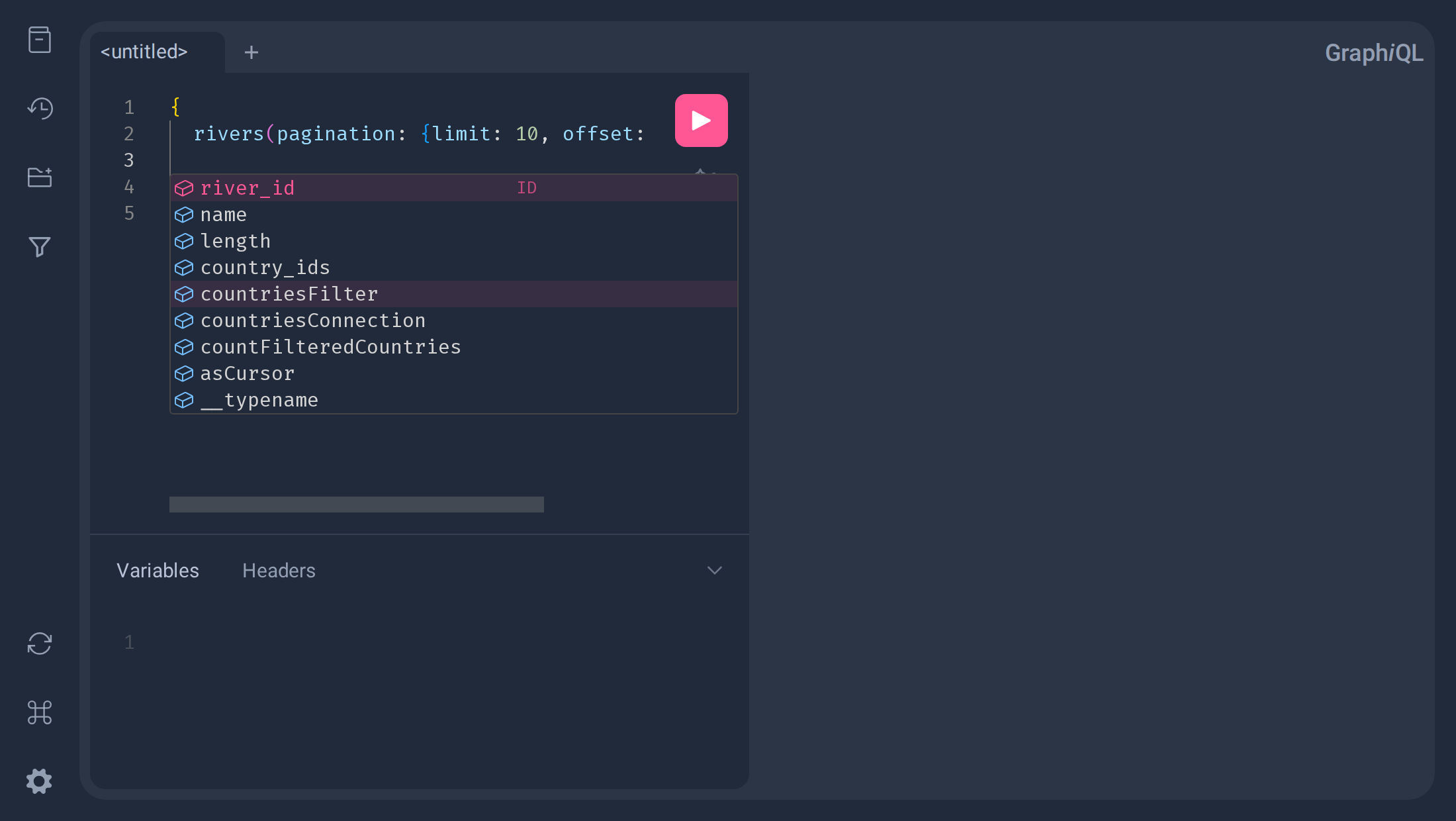
Here we can get the fields river_id, name, length and country_ids. The rest of the list relates to countries, since rivers is associated with countries, letting us build a more complex query.
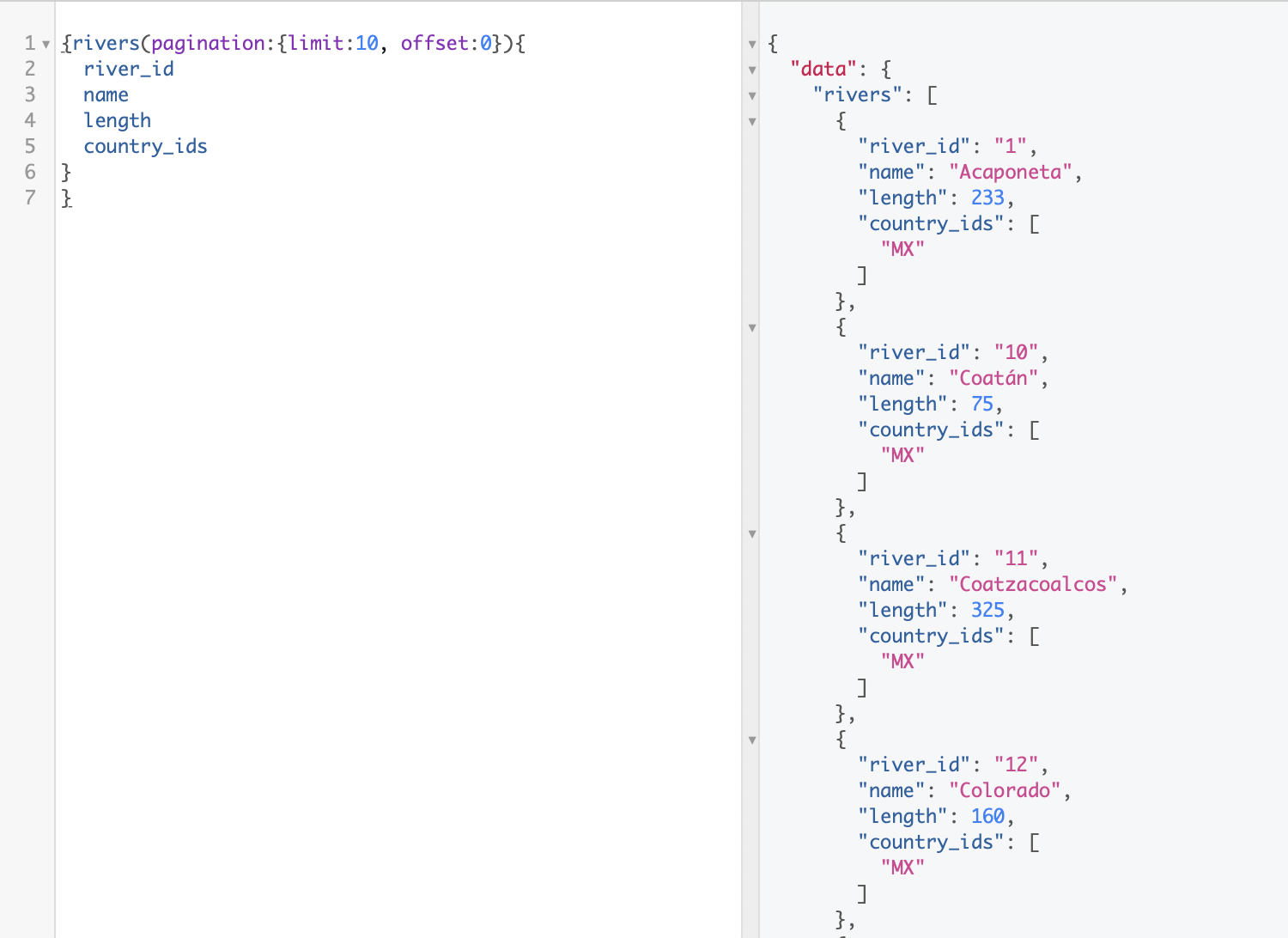
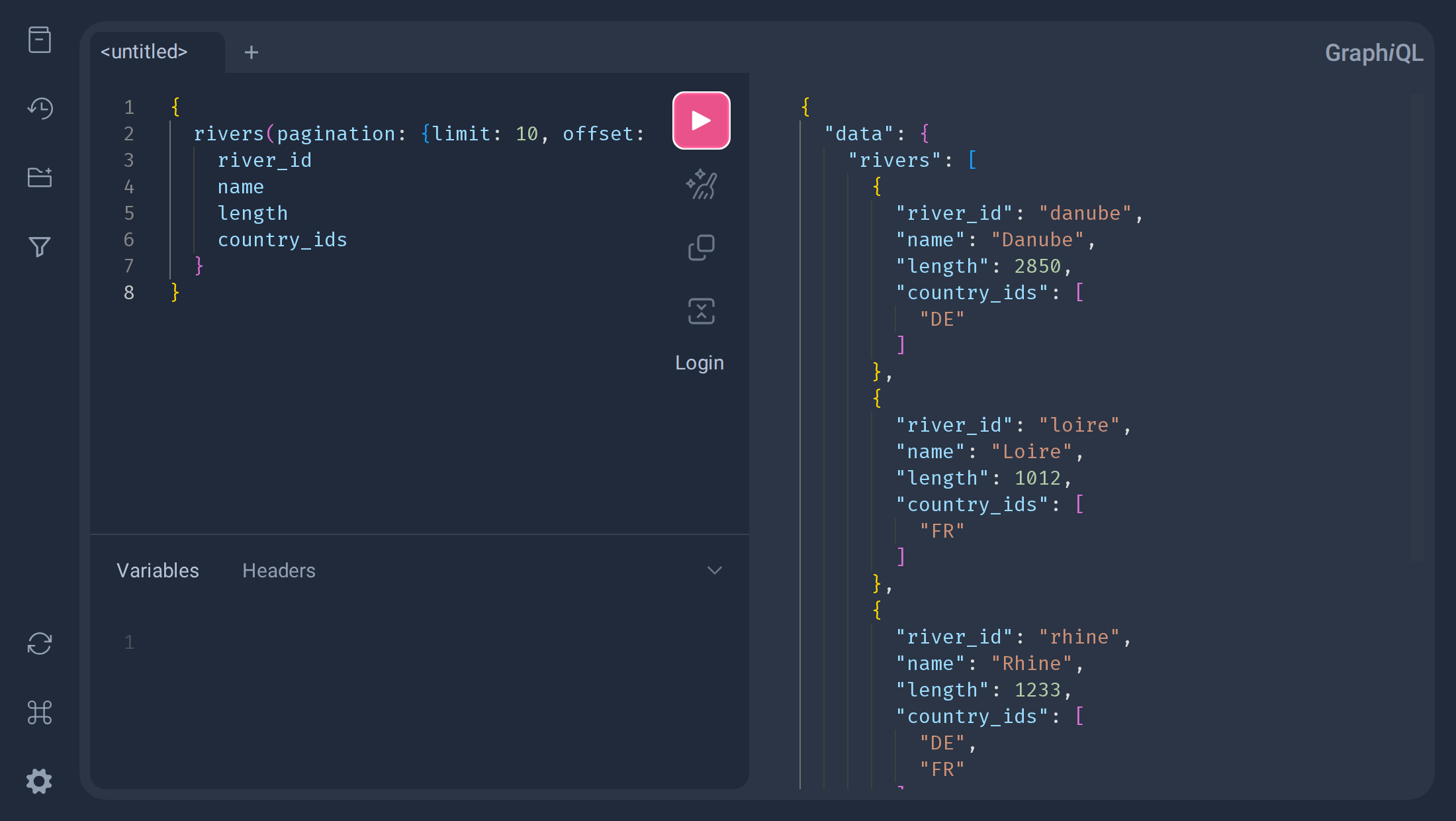
Let’s build a query that returns the fields river_id, name, length and country_ids from the river type:
{
  rivers(pagination: {limit: 10, offset: 0}) {
    river_id
    name
    length
    country_ids
  }
}
For each river in the data, we get its ID, name, length in kilometers, and the ID of any country it’s associated with:
Extracting data from associated types
GraphQL can fetch fields associated with a record across different types, so you only retrieve the variables and records you need from the entire dataset. For example, you can get the name and length of a river, as well as the name and population of the countries it crosses — in a single request.
Extracting data from associated types depends on whether the association is one-to-one (a city belongs to one country) or one-to-many (a river can cross many countries).
One to one
For a one-to-one association, the associated data model appears as just another field — for example, each city is associated with one country, so country is one of the fields available within cities.
Looking at the Docs, you’ll notice it’s not just a plain field — you need to provide it with a search argument telling Zendro which field to match on:
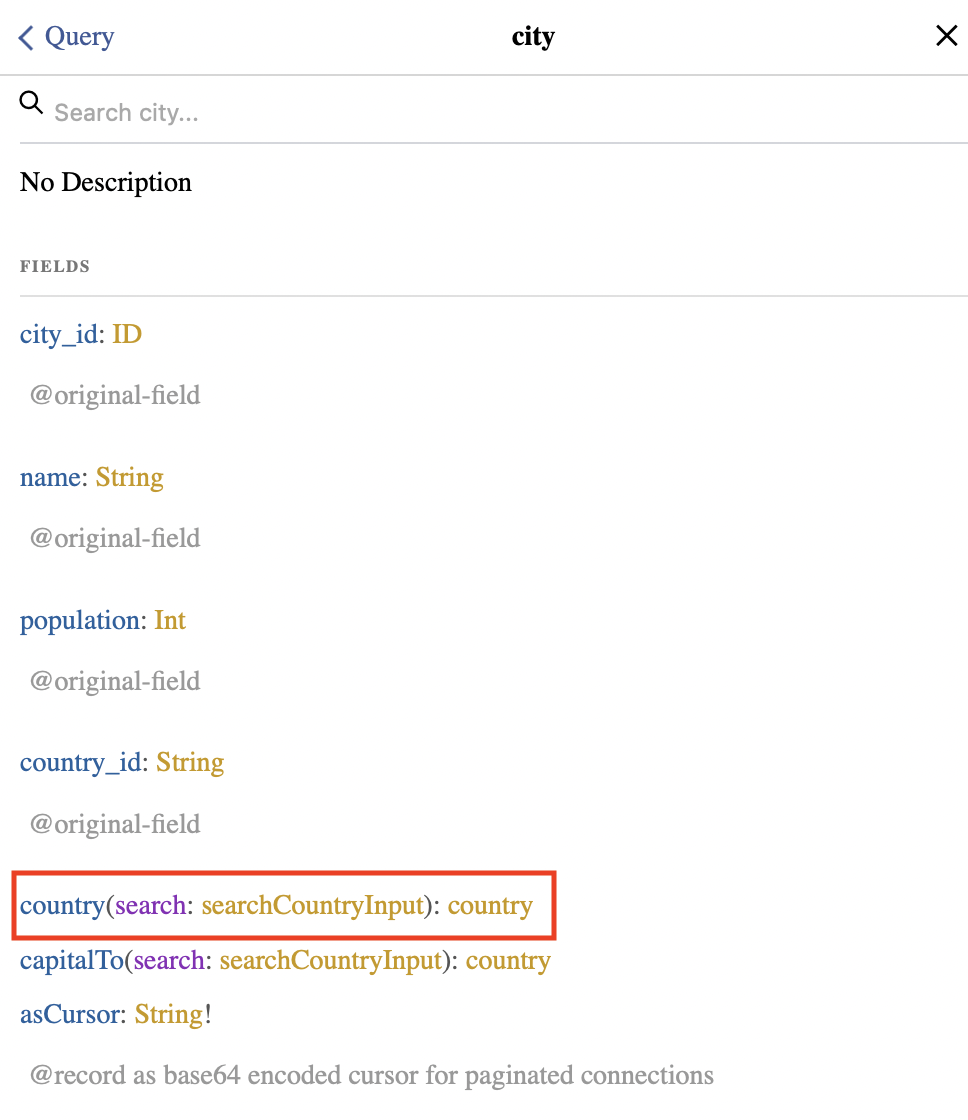
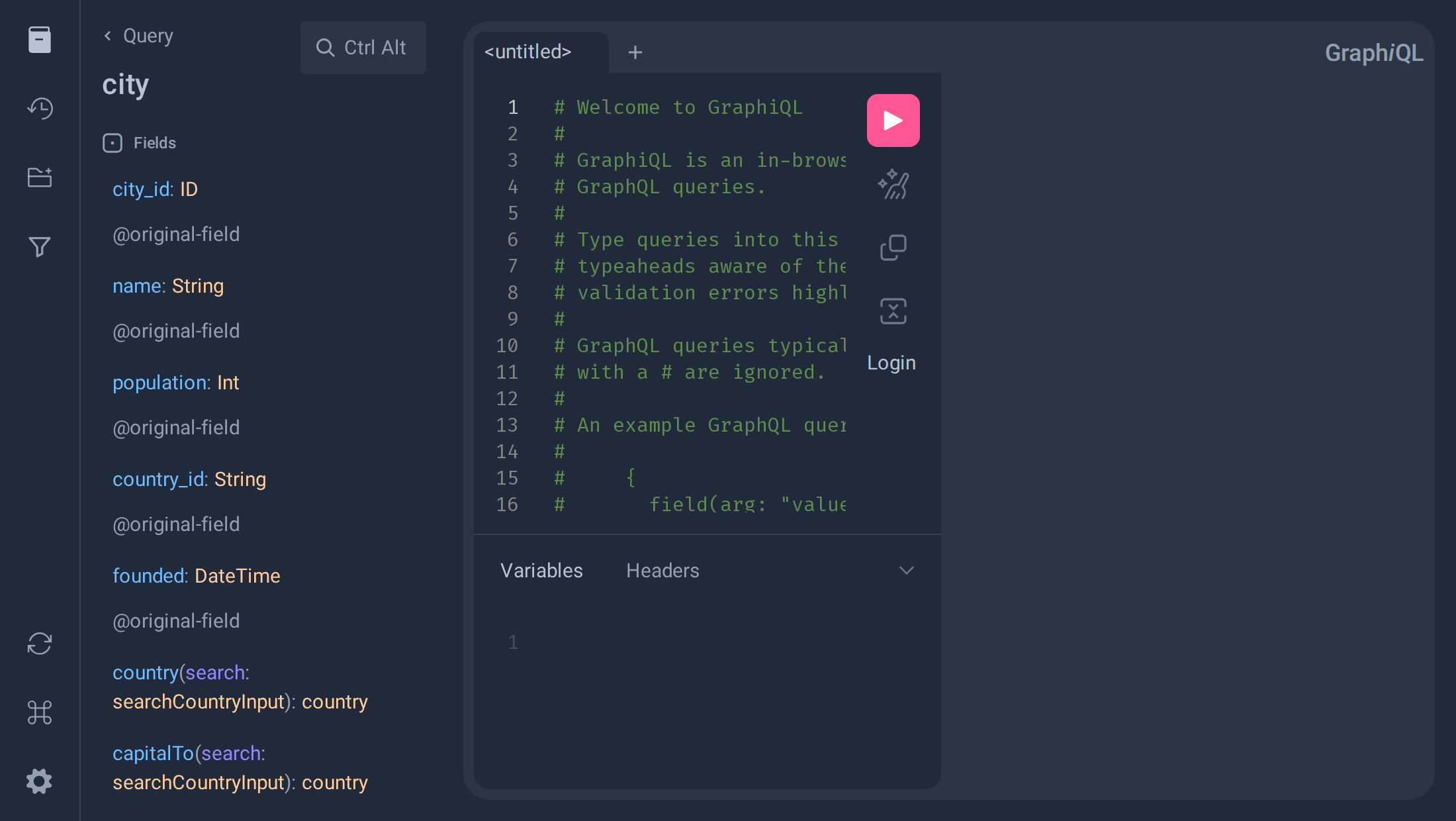
Here we want to look up the associated country, and we know the common field (the key) is country_id, so the search should look like:
{
  cities(pagination: {limit: 10, offset: 0}) {
    city_id
    name
    population
    country(search: {field: country_id}) {
      name
      population
    }
  }
}
One to many
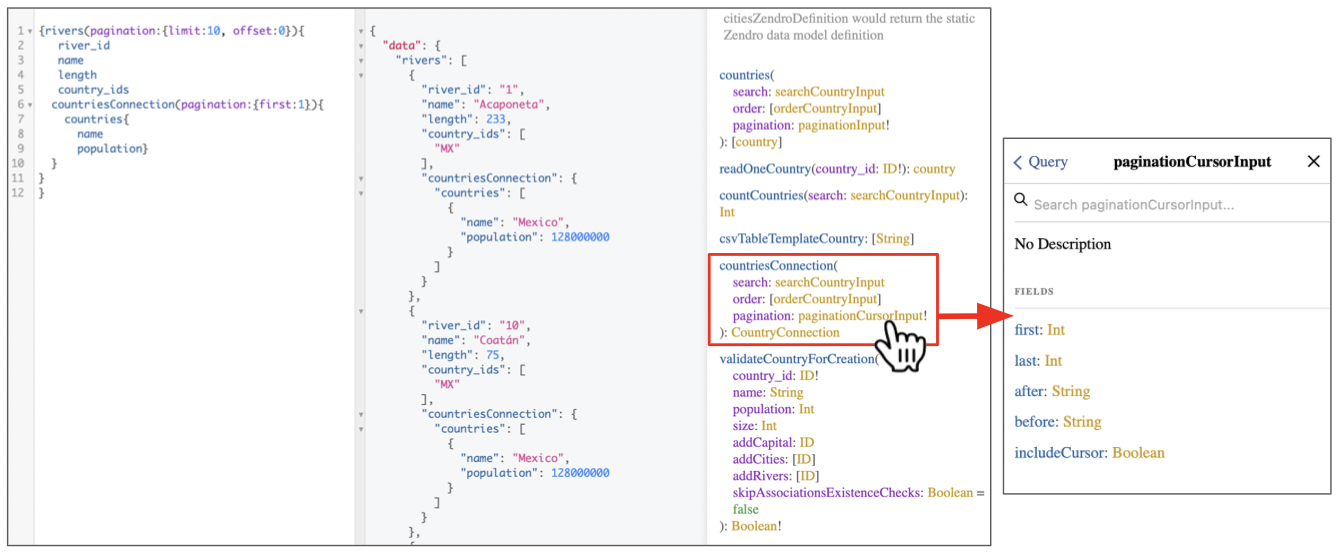
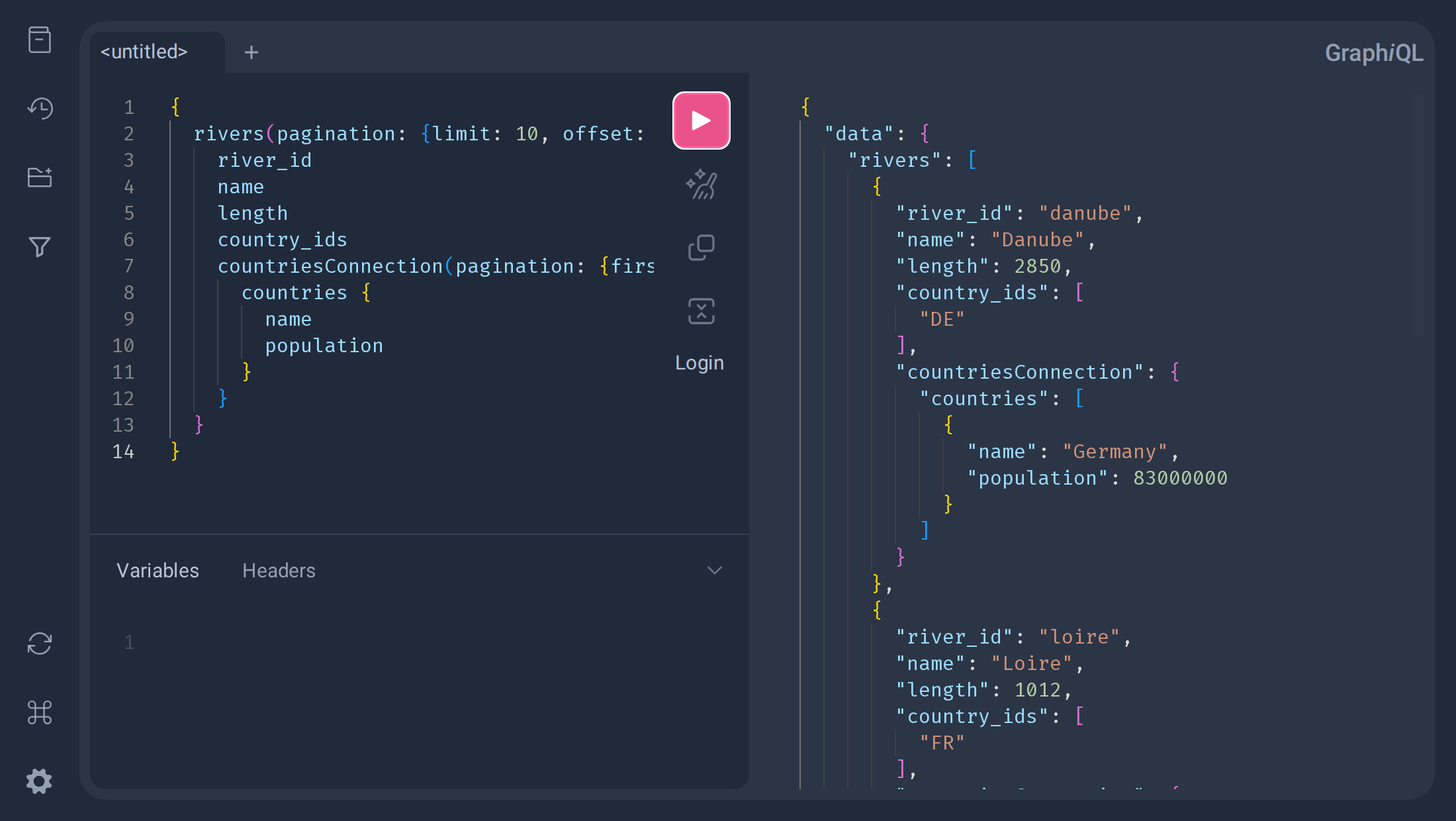
For a one-to-many association, there’s a Connection field for each association the model has, following the GraphQL Relay Connection spec. For example, to see the countries a river is associated with, use countriesConnection:
{
  rivers(pagination: {limit: 10, offset: 0}) {
    river_id
    name
    length
    country_ids
    countriesConnection(pagination: {first: 5}) {
      countries {
        name
        population
      }
    }
  }
}
Remember to check the Docs for any mandatory argument — here, pagination is mandatory too, but it takes a cursor-style shape (first/last/after/before) rather than limit/offset. You can check what’s expected by clicking on paginationCursorInput in the documentation. Also see the pagination argument documentation for details.
Besides countries, a Connection field also exposes edges (each wrapping a node and a pagination cursor) and pageInfo — useful if you need cursor-based pagination through a large set of associated records. The flat countries field used above is a convenience shortcut when you just want the records.
After executing the query, you get the same data as before for each river, plus the data of the country (or countries) it’s associated with:
Using variables
In the examples above, all the arguments are inline in the query string. But arguments to fields can also be dynamic — for instance, an application might have a dropdown menu letting the user select which city they’re interested in, or a set of filters.
GraphQL can factor these dynamic values out of the query and pass them as a separate dictionary — these are called variables. Common variables include search, order and pagination. To use variables:
- Replace the static value in the query with
$variableName. - Declare
$variableNameas one of the variables accepted by the query. - Pass
variableName: valuein the separate “Variables” panel at the bottom of the GraphiQL window (in JSON format).
Check the official documentation for examples.
Next steps
You can write much more complex queries to get exactly the data you want — explore the GraphQL documentation or other resources to learn more. The examples above should get you going if you want to pull data into R or Python for analysis.
Before downloading data from R, Python or any other programming language via the GraphQL API, we recommend writing and testing the query in the GraphiQL web interface first, making sure it returns the desired data in the right panel, as shown above.
See Filtering with jq and JSONPath to search across nested associations, or the Python and R guides for using the GraphQL API from those languages.