GraphQL filtering using jq and JSONPath
Table of contents
What is jq?
jq is a lightweight and flexible command-line JSON processor. It extracts and manipulates data from JSON documents with simple and powerful filters, letting you transform JSON data in various ways.
Why use jq?
- Filtering: quickly filter, slice, and extract specific parts of JSON.
- Transformation: modify JSON structures, useful for cleaning, formatting, or transforming JSON data.
- Simplicity: a simple syntax lets you do complex manipulations easily.
Why jq is used with GraphQL
GraphQL responses are returned in JSON format. Since GraphQL allows flexible queries, the structure of the returned data can vary significantly, making it necessary to manipulate the response for specific use cases. This is where jq comes in: after querying a GraphQL endpoint, you might need to isolate or transform the returned JSON data for processing, and jq makes this easy, letting you select only the fields you need from the complex JSON response.
What is JSONPath?
JSONPath is a query language for JSON, similar to XPath for XML. It extracts specific parts of a JSON document based on a path expression, and is often used when interacting with JSON data in various programming environments.
Why use JSONPath?
- Simplifies JSON querying: easy navigation and extraction from nested JSON structures using path expressions.
- Integration with APIs: many tools and libraries support JSONPath for working with JSON-based APIs.
- Efficient data extraction: extract only the data you need, saving time and resources.
Why JSONPath is used with GraphQL
GraphQL responses are JSON-based and can be deeply nested with numerous fields. JSONPath provides a simple, readable way to extract specific data from this structure, making it an excellent tool for working with GraphQL results.
Example usage
In real-world scenarios, especially with GraphQL APIs, tools like jq and JSONPath help you interact with responses more efficiently. Zendro’s GraphiQL integrates these filtering techniques directly into its interface — under the hood, your filter expression is sent as a jq or jsonPath HTTP header alongside the query, and graphql-server applies it to the response before sending it back.
The screenshots below use the same demo dataset as the rest of the guides — three countries, nine cities and four rivers (see the Quickstart guide).
Filtering in Zendro
Zendro’s GraphiQL interface provides a flexible and interactive way to query the data, applying filters directly to your queries to refine the response. It lets you request only the fields you need, and presents the data in JSON format.
In the results, you can see the JSON output, which can be further processed with jq or JSONPath for specific tasks, such as:
- Filtering specific fields: extract only the fields that matter to you from the GraphQL response.
- Nested data extraction: deal with nested data structures, and query deeper levels of the data tree with additional tools like
jqorJSONPath.
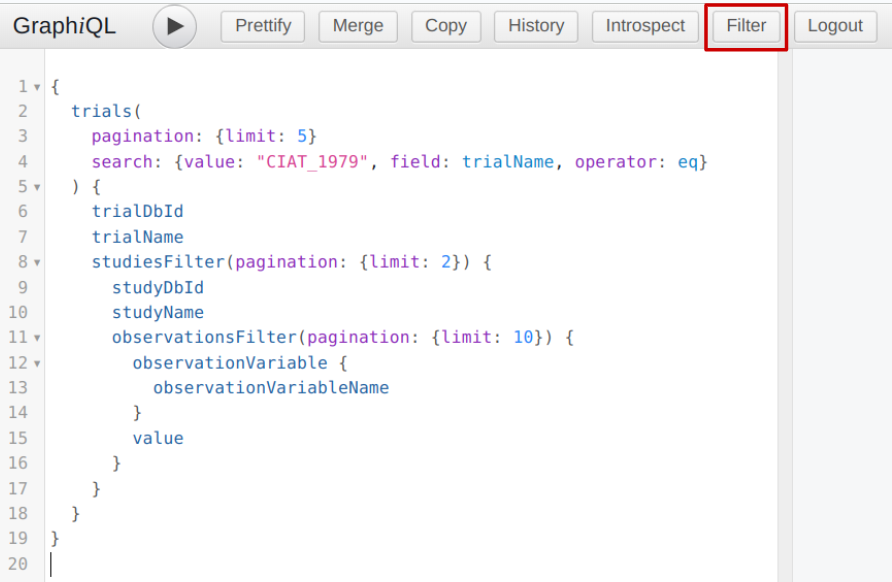
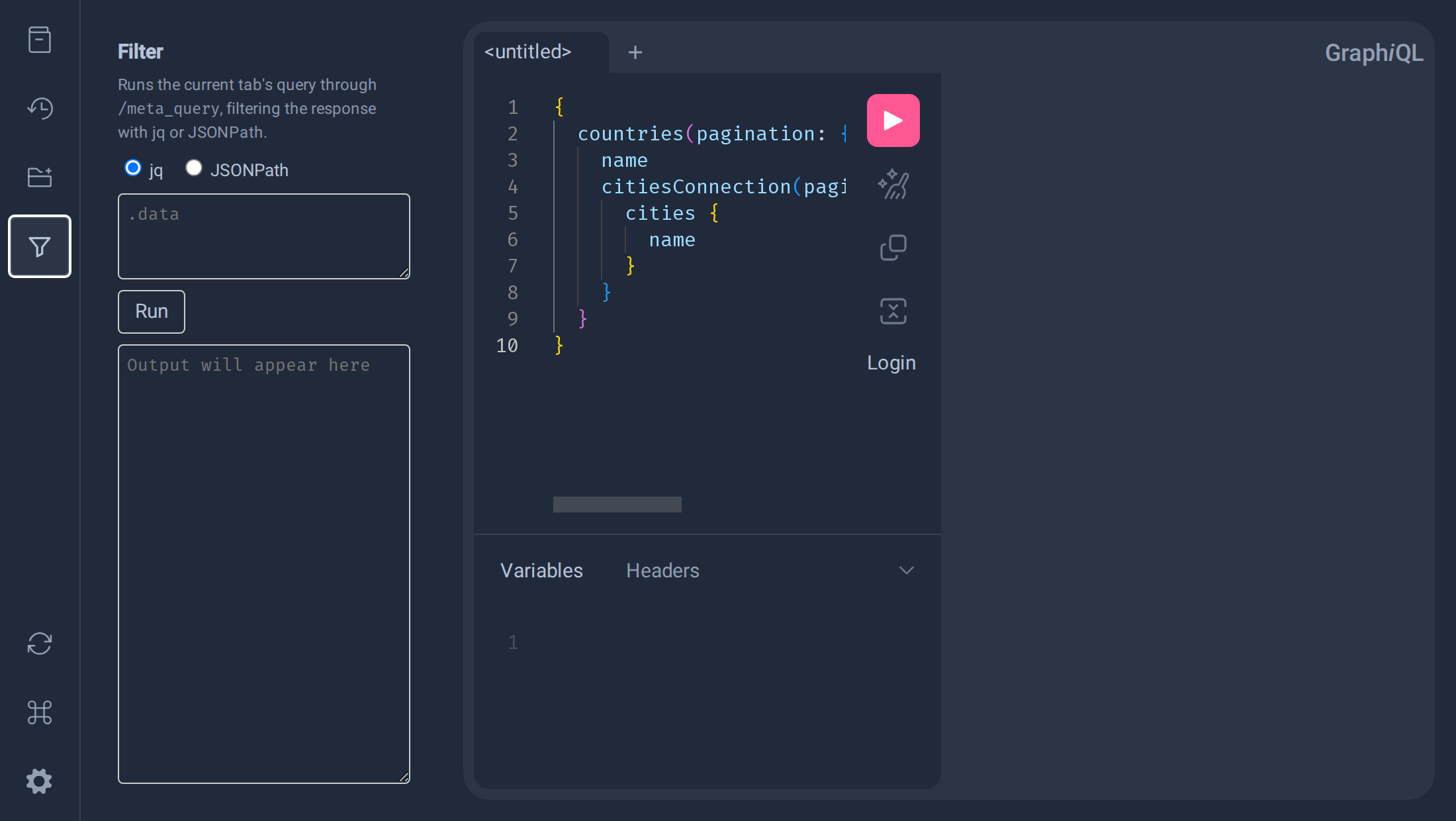
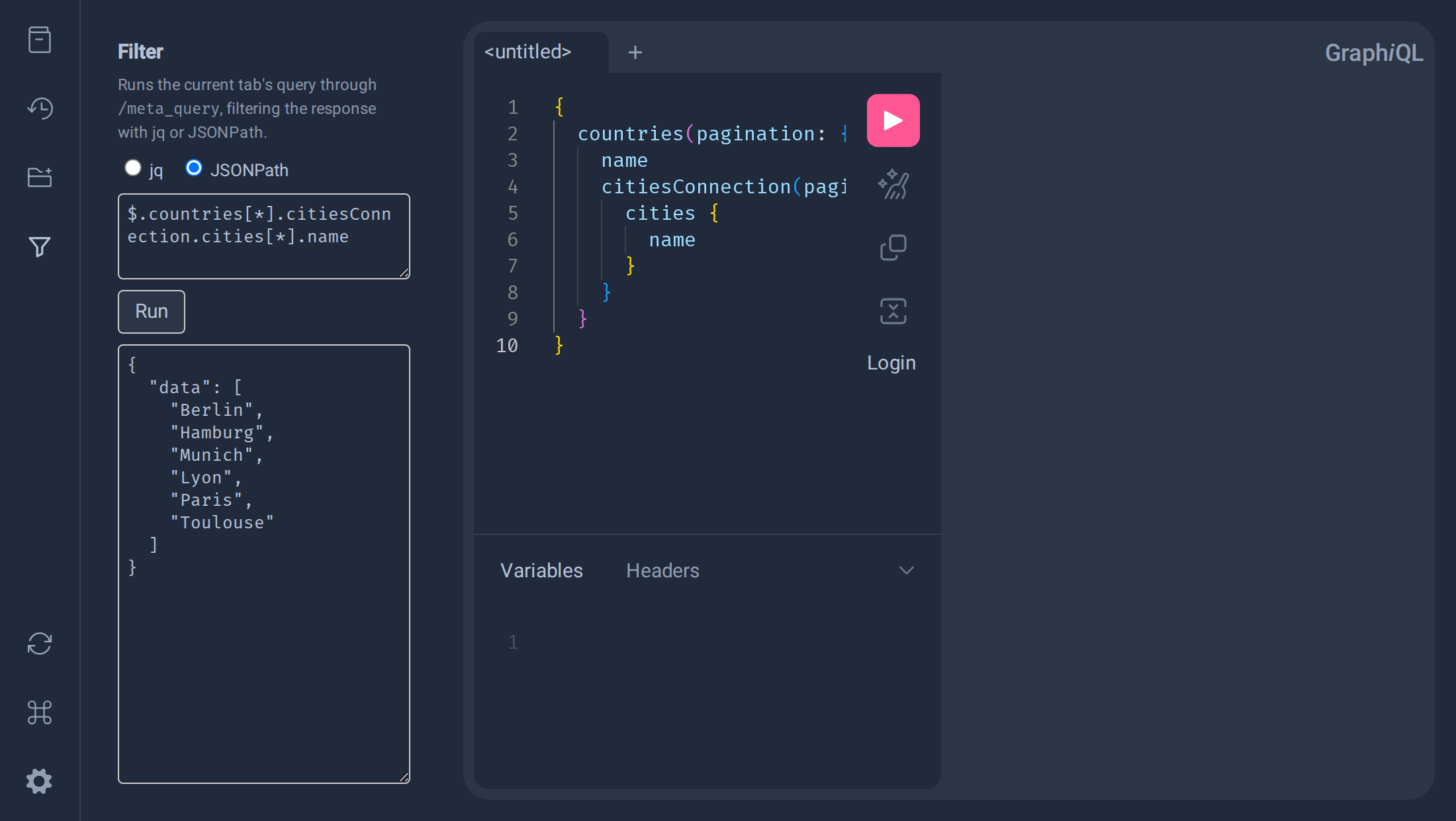
Once you have a query, at the top left of the interface there’s a funnel icon. Clicking it opens the Filter panel, where you can select jq or JSONPath, write your filter, and click Run to see the filtered results in the panel below — separate from the main query result on the right.
Here’s the query used throughout this example — every country with the cities in it:
{
  countries(pagination: {limit: 2, offset: 0}) {
    name
    citiesConnection(pagination: {first: 10}) {
      cities {
        name
      }
    }
  }
}
Filtering with jq
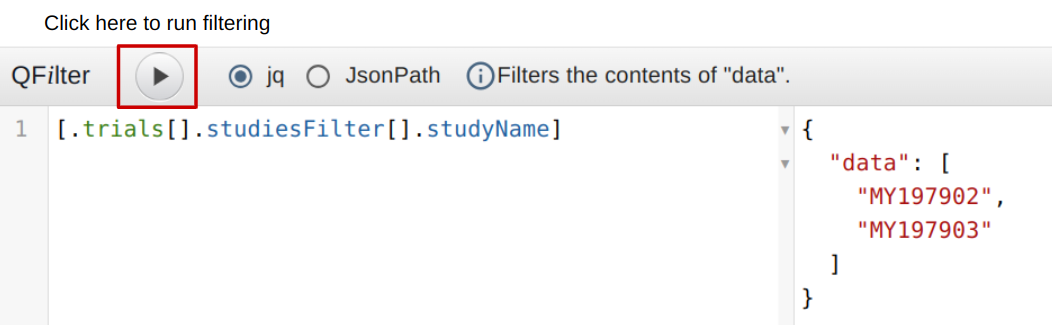
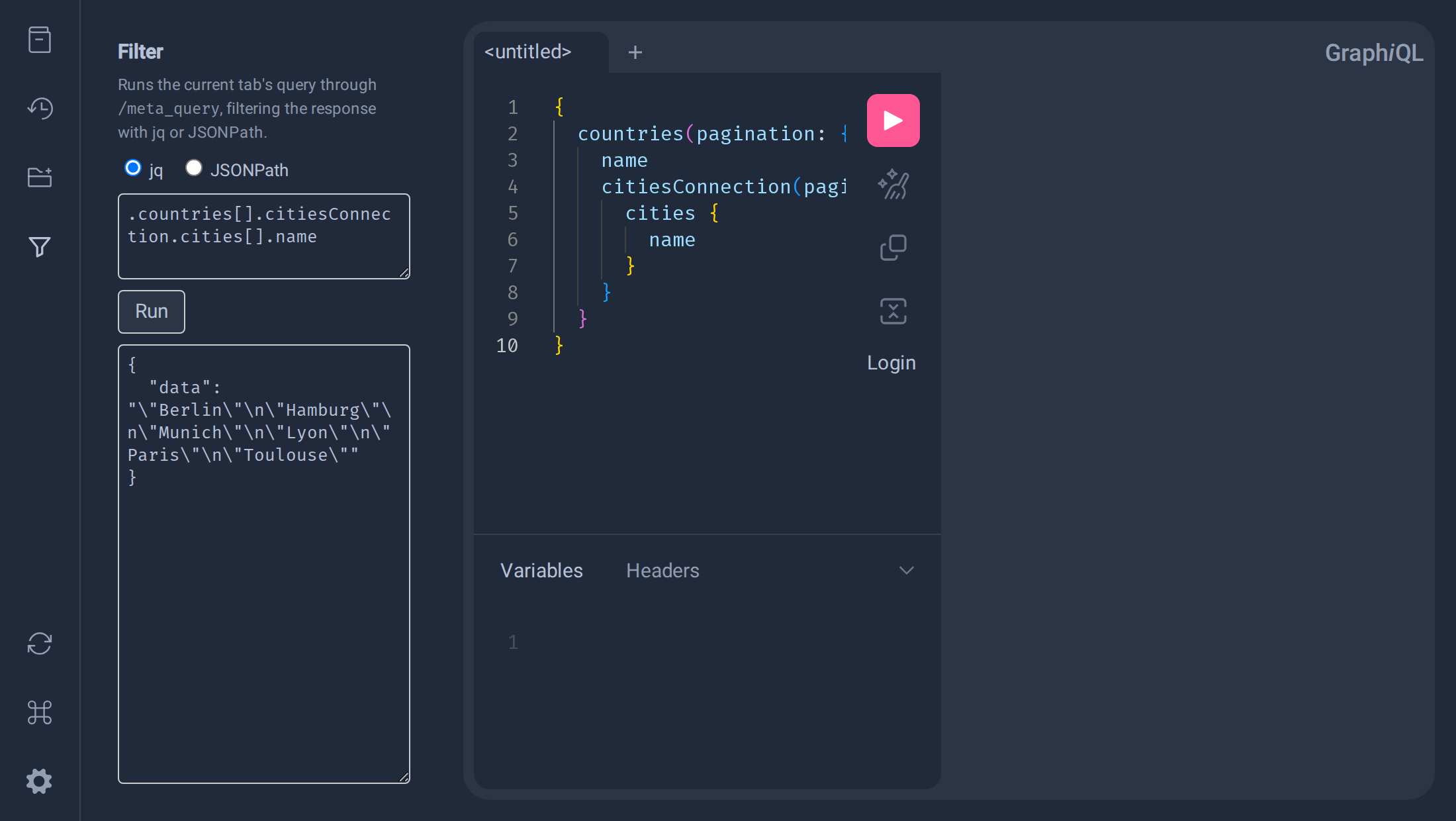
If we just want the names of all cities across both countries, we can extract them with a jq filter:
.countries[].citiesConnection.cities[].name
Explanation
.countries[]: accesses thecountriesproperty of the root object. The[]selects all elements of that array — injq,[]iterates over an array to extract all its elements..citiesConnection.cities[]: within each country, accesses thecitiesConnection.citieslist and iterates over it..name: finally, accesses thenameproperty of each city.
Notice the result is a single string with the city names separated by newlines (\n), not a JSON array — that’s jq’s default raw text output mode, where every match becomes its own line. To get an actual JSON array instead, wrap the filter in brackets:
[.countries[].citiesConnection.cities[].name]
This returns ["Berlin","Hamburg","Munich","Lyon","Paris","Toulouse"] — much easier to consume programmatically.
jq can also build entirely new objects out of the query result. For example, to list only the rivers that cross more than one country, together with which countries those are:
[.rivers[] | select(.countriesConnection.countries | length > 1) | {river: .name, countries: [.countriesConnection.countries[].name]}]
Run against a query for rivers with their countriesConnection, this returns:
{
  "data": [
    {
      "river": "Rhine",
      "countries": ["Germany", "France"]
    }
  ]
}
.rivers[]: iterates over every river in the result.select(.countriesConnection.countries | length > 1): keeps only rivers whose associatedcountrieslist has more than one entry.{river: .name, countries: [...]}: builds a new object per matching river, renamingnametoriverand collecting the associated country names into acountriesarray.
Filtering with JSONPath
The same city-listing example, but with JSONPath instead:
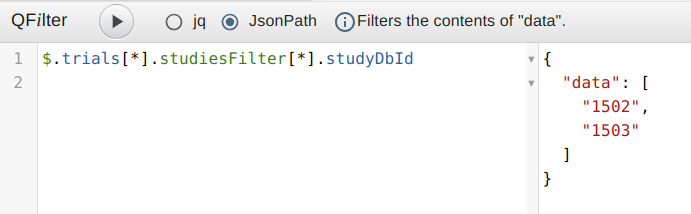
$.countries[*].citiesConnection.cities[*].name
Explanation
JSONPath’s syntax is very similar to file paths or regular expressions. It navigates through a JSON object or array and extracts specific elements.
$: the dollar sign represents the root object — the starting point of the query..countries[*]: accesses thecountriesproperty of the root object and selects all elements of that array. The asterisk[*]selects all elements..citiesConnection.cities[*]: within each country, selects every element of thecitieslist..name: finally, selects thenameproperty of each city.
Unlike the plain jq version above, this returns ["Berlin","Hamburg","Munich","Lyon","Paris","Toulouse"] directly as a JSON array — JSONPath matches are always collected into an array, without needing the extra [...] wrapping jq requires.
Key differences from jq
JSONPath doesn’t support creating new objects the way jq’s {river: .name, countries: [...]} does — there’s no equivalent way to reshape or rename fields, only to select and filter existing ones. It does support filter expressions on array elements, similar to jq’s select(...). For example, to get the names of rivers longer than 1500 km:
$.rivers[?(@.length>1500)].name
This returns ["Danube","Rio Grande"] — the ?(...) predicate keeps only array elements matching the condition, here checking the length field of each river directly with @ (the current element).
By combining GraphQL with tools like jq and JSONPath, you can efficiently retrieve and manipulate data, making your API interactions even more powerful.